Physical Address
304 North Cardinal St.
Dorchester Center, MA 02124
Physical Address
304 North Cardinal St.
Dorchester Center, MA 02124
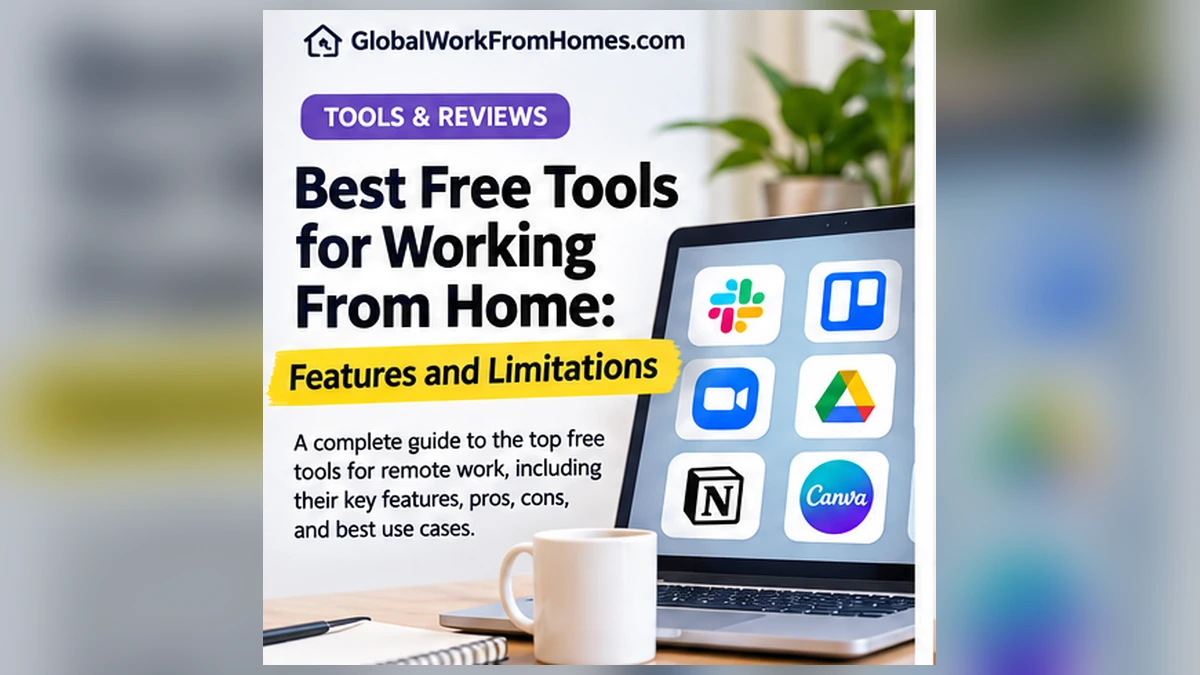


A beginner working from home can cover most basic needs with free tools: Google Docs and Sheets for documents, Zoom or Google Meet for calls, Slack for team messaging, Trello or Notion for projects, Clockify for time tracking, Canva for simple graphics, Calendly for bookings, and a password manager such as Bitwarden. The best choice depends on your tasks, employer rules, privacy needs, and the limitations of the actual free plan—not on how many apps you install.
“Free” rarely means unlimited. A tool may let you sign up without paying but restrict meeting duration, collaboration history, file sizes, automation, integrations, or the number of teammates. Some products bundle a limited AI trial into a free plan and charge for additional use. Comparing tools solely by their marketing headlines can lead to an unpleasant surprise during your first client project or remote workday.
This review is designed for three audiences: job seekers preparing for remote roles, freelancers working with early clients, and small teams organizing work without purchasing a full software suite. It describes what each tool does, a realistic beginner use case, the most important free-plan limitations, and when an upgrade might make sense. Product terms and prices can change, so verify the linked official vendor plan page before buying or relying on a specific feature. This article does not claim that every product was tested in a controlled laboratory or that any company sponsored the recommendations.
Our practical criteria are task fit, free-plan usefulness, collaboration, accessibility, data portability, security controls, and upgrade triggers. A useful free tool must do more than create an account: it should let a beginner complete a meaningful task with a predictable workflow. We also considered whether the tool can be used alone, requires other participants to join, or depends on the employer’s system.
We prioritized information from official pricing and help pages. For example, Slack’s free plan offers recent message history rather than unlimited permanent access, Trello imposes board and collaborator limits, Notion limits some multi-member workspaces, Zoom Basic limits meeting duration, and Calendly’s free plan limits event types. These details matter when deciding whether a free option is sufficient. Vendor pages are primary sources for plan terms, but they also describe their products favorably; the workflow recommendations and trade-offs below are our own editorial assessment.
An important caveat: if you are an employee, the employer may require a particular approved suite. Don’t replace its tools with free personal accounts or upload private work files to consumer services merely because another app is convenient. For a freelancer, check the client’s agreement before sharing any data with third-party software.
Core use: Drafting instructions, customer replies, meeting notes, onboarding guides, proposals, and shared text documents. Multiple authorized collaborators can comment and make edits. A beginner can create a client brief, share it as view-only, and track changes without emailing five versions of a file back and forth.
Practical workflow: Create a document titled `Client_Project_Brief_v1`. At the top, include objective, scope, agreed deliverables, owner, due date, open questions, and next review. Share the appropriate access level. Use comments for questions instead of editing over someone else’s contribution. Before sending a final result, export a PDF or another format the recipient requested.
Limitations: Offline access needs setup, and not all features behave the same offline as online. Google’s official instructions (https://support.google.com/docs/answer/6388102) explain the browser, extension, and storage requirements. Storage is shared with the Google account’s broader services, and advanced organizational governance may require a paid Workspace plan.
Best for: Anyone handling words and structured feedback. Not ideal for: Sensitive employer records in a personal account or complex desktop publishing that requires precise layout. The free version is a strong starting point, not a substitute for a company’s records policy.
Core use: Task trackers, job-application logs, content calendars, expense records, customer inquiry lists using appropriate fictional or authorized data, and simple reporting. Sheets works especially well when your goal is a shared table rather than a complex database. Sorting and filtering are easy to demonstrate in a beginner portfolio.
Practical workflow: Create columns for task, owner, priority, due date, status, and next step. Use a dropdown for status values such as Not started, In progress, Waiting, and Complete. Add a separate tab explaining how the tracker should be updated. For a freelancing budget, distinguish income received from invoices issued and record fees separately.
Limitations: A spreadsheet requires discipline. Without consistent fields, people can accidentally sort only part of a table, overwrite formulas, or expose private data through an overly broad sharing setting. Very complex automation, large databases, and formal audit controls may call for specialized software.
Best for: Beginners, solo workers, and small teams with structured lists. Not ideal for: High-stakes regulated records, sophisticated permission systems, or projects that exceed spreadsheet capabilities. Always check access permissions before sending a link.
Core use: Virtual interviews, short client discovery calls, team check-ins, and screen-sharing sessions. Zoom’s familiar join flow can reduce friction when a client or interviewer already uses it. Its free Workplace Basic plan is listed on Zoom’s official product page (https://www.zoom.com/en/products/virtual-meetings/) with a maximum of 40 minutes per meeting and up to 100 participants, as checked in October 2026.
Practical workflow: Schedule a 25-minute discovery call, send an agenda in advance, test audio and screen sharing, and leave five minutes for next steps. Use a calendar invitation with the meeting link, local time zone, and backup contact. When demonstrating a screen, close unrelated tabs and notifications before sharing.
Limitations: The 40-minute meeting cap matters for long training, workshops, and extended interviews. Some advanced meeting, storage, and AI capabilities require paid tiers. Recording may also raise consent and privacy questions; do not record or activate transcription without appropriate authorization.
Best for: Short meetings with external people. Not ideal for: A free, uninterrupted multi-hour workshop. If your client already uses another approved meeting service, avoid forcing everyone to create extra accounts.
Core use: Video meetings associated with Google accounts and calendar invitations. Its advantage is convenience for teams whose schedules and documents already live in Google services. A remote worker can schedule a call, send preparation notes, and connect the discussion to a shared document.
Practical workflow: Create a calendar event, include a clear purpose, add the correct time zone, share a short agenda, and check permissions before inviting external guests. Use headphones and a quiet space when possible. Send a written summary afterward, listing decisions and owners rather than relying on memory.
Limitations: Available features and meeting-length limits depend on the account and plan. Enterprise recording, attendance reports, controls, and other administration features may differ from the consumer service. Because Google changes and bundles features, verify the Google Meet product page (https://workspace.google.com/products/meet/) for your specific account and avoid quoting a blanket limit in client agreements.
Best for: Google-based scheduling and simple calls. Not ideal for: Teams that already rely on another approved system or need advanced compliance capabilities. Choose the platform your employer or client authorizes.
Core use: Channels for projects, quick updates, one-to-one messages, and lightweight communication. A small remote team can separate customer questions from editorial reviews and maintain a shared sense of progress without putting every message into email. Slack can be useful for rapid coordination, but a chat stream should not replace a permanent source of truth.
Practical workflow: Create a channel for one project, pin the current brief, agree on how to mark blockers, and post concise status updates. Put final decisions and requirements into a durable document. Encourage a convention such as “Decision,” “Question,” and “Action required” so urgent items are easier to recognize.
Limitations: Slack’s official free-plan details (https://slack.com/pricing/free) describe access to 90 days of searchable messages and a limit of 10 apps. Its help documentation also describes older free-workspace data retention and deletion rules. This makes Slack a poor sole archive for contracts, policies, or decisions that you may need much later. Some collaboration and administration features require paid plans.
Best for: Small groups that need active conversation. Not ideal for: Long-term recordkeeping, sophisticated audit trails, or tightly regulated communication without a suitable enterprise arrangement.
Core use: Kanban boards that show work moving from To do to Doing to Done. Trello is easy to grasp visually and can help freelancers manage several deliverables or a small team coordinate articles. It makes bottlenecks visible without requiring an elaborate project-management process.
Practical workflow: Create a board for one editorial project with columns Backlog, Drafting, Editing, Ready, and Published. Give each card a descriptive name, an owner, a due date, and a checklist. Attach only files you are authorized to share. Move cards when status actually changes, rather than treating the board as decoration.
Limitations: Trello’s official free-plan page (https://trello.com/en/pricing) lists up to 10 boards per Workspace, up to 10 collaborators, and a 10 MB per-file limit, along with defined automation allowances. Some advanced features require Standard or Premium. Ten boards may be sufficient for a new freelancer but tight for a growing agency.
Best for: Visual task tracking with a small number of collaborators. Not ideal for: Detailed enterprise dependencies, large attachments, or very complex reporting. A clear naming convention matters as much as the app.
Core use: Creating a central workspace for notes, checklists, processes, project databases, and internal knowledge. Notion is flexible: a beginner can maintain a client onboarding page, a list of active projects, and a reference library without juggling many separate files.
Practical workflow: Build a simple dashboard with three sections: Active Work, Reference Material, and Weekly Review. Use a database for tasks with status and due date properties. Write a brief operating procedure for repeating steps. Avoid adding complicated formulas or dashboards before the underlying workflow is clear.
Limitations: Notion’s pricing page (https://www.notion.com/pricing) says the free plan is generous for individual use, but blocks are limited for workspaces with multiple members, and free file uploads are capped at 5 MB each. Page history and advanced permissions are also tier-dependent. Some AI features are trial-limited or paid.
Best for: Solo workers who like structured documents and flexible databases. Not ideal for: Users who need a very simple to-do list, large media libraries on free storage, or organizational controls beyond the consumer plan.
Core use: Recording time spent on client projects, internal tasks, and recurring work. Tracking time is helpful even when you charge fixed project fees: it shows whether a quoted project was profitable and which stages take longer than expected. A beginner can learn whether editing, client communication, or revisions are consuming the budget.
Practical workflow: Create project names that correspond to your contracts. Start the timer when work begins and stop it when the task ends. Review the timesheet at the end of each week. Compare actual hours with estimates and note reasons for differences, such as added revisions or unclear client input.
Limitations: The official Clockify pricing page (https://clockify.me/pricing) lists a free time-tracking option for up to five users, with unlimited tracking. Paid options cover additional management and administrative needs. A timer does not independently prove work quality, and excessive monitoring can damage trust if used without an agreed purpose.
Best for: Solo freelancers and very small teams assessing effort. Not ideal for: Complex payroll, legal timekeeping, or employer surveillance without proper policies and consent.
Core use: Social posts, presentation slides, basic thumbnails, flyers, visual resumes when appropriate, and lightweight client graphics. It offers ready-made layouts, which can help beginners create materials quickly. Canva may also be useful for producing practice portfolio examples, as long as you comply with the applicable asset licenses.
Practical workflow: Choose a design size that matches the publishing destination, keep the headline short, and use consistent colors and fonts. For a blog featured image, make key text readable at card size and avoid placing it right at the edges where cropping might occur. Export in a suitable image format and test the result on desktop and mobile.
Limitations: Canva’s official pricing page (https://www.canva.com/pricing/) distinguishes the free content library, storage, and AI allowances from paid tools and premium assets. Some templates, images, export features, brand controls, and AI uses have restrictions. Verify commercial usage and licensing before delivering client work, especially when using stock media or a logo.
Best for: Basic visual communication. Not ideal for: Professional identity designs requiring exclusive rights, highly detailed print production, or work where exact ownership and licensing rules are not understood.
Core use: Giving clients or interview contacts a way to select an available meeting slot without a long email exchange. A booking link can save time for freelancers who have repeated discovery calls, tutoring appointments, or consultation sessions.
Practical workflow: Connect the correct calendar, choose realistic availability, add a buffer between meetings, and create a descriptive event such as “20-minute project introduction.” Include the time zone and a short description of what attendees should prepare. Test the link from a private browser window before sending it.
Limitations: Calendly’s official plan comparison (https://calendly.com/pricing) lists one event type and one calendar connection on the free plan. More event types, multiple calendars, some automated reminders, and advanced team routing are paid features. If you only need one simple booking page, the free tier may be enough.
Best for: Solo professionals with one recurring meeting format. Not ideal for: Complex team scheduling, multiple service types, or advanced workflow automation on the free tier.
Core use: Creating and storing unique passwords rather than reusing the same password across job boards, client portals, and remote-work tools. A password manager can support safer habits for workers who log into several services. Pairing unique passwords with multifactor authentication where available is more valuable than memorizing a long list of weak credentials.
Practical workflow: Create your personal vault with a strong master password, follow the provider’s security setup guidance, and migrate logins carefully. Generate unique passwords for each account. Avoid keeping client credentials in personal notes or sharing passwords through chat. If a client or employer provides an approved credential-management system, use that system instead of copying sensitive credentials to a personal vault.
Limitations: Bitwarden offers a free personal plan (https://bitwarden.com/pricing/), but selected advanced sharing, reports, and other features are tied to paid subscriptions. A password manager reduces some risks; it does not make phishing, unsafe downloads, or account compromise impossible. Account recovery and emergency access choices require planning.
Best for: Individuals improving account hygiene. Not ideal for: Unapproved storage of employer secrets or as a substitute for organizational identity and access controls.
| Need | Sensible starting tool | Biggest free-tier caution |
|—|—|—|
| Write shared instructions | Google Docs | Sharing permissions and offline setup |
| Track lists and applications | Google Sheets | Formula mistakes and data exposure |
| Hold short video calls | Zoom Basic | 40-minute meeting cap |
| Meet from Google Calendar | Google Meet | Account-dependent feature limits |
| Coordinate team messages | Slack Free | Limited message history |
| Manage visual tasks | Trello Free | Board, user, and file limits |
| Store structured knowledge | Notion Free | Multi-member and file-size limits |
| Track time | Clockify Free | Small-team and management scope |
| Make simple visuals | Canva Free | Premium assets and licensing |
| Book one type of appointment | Calendly Free | One event type and calendar |
| Store personal passwords | Bitwarden Free | Advanced organizational controls |
This table summarizes official plan terms checked in October 2026; vendor offerings may change. A person does not need every tool in the table. Choose the smallest combination that satisfies the actual work.
First-time remote employee: Use the systems assigned by the employer. For personal job-search preparation, a document editor, calendar, and password manager may be sufficient. Do not introduce unapproved tools to handle customer information. If the employer provides Teams, Microsoft 365, or a specialized ticketing platform, learn that workflow rather than assuming your preferred app will be accepted.
New freelancer offering writing or administrative services: Start with Google Docs for deliverables, Sheets for task and invoice tracking, Zoom or Meet for calls, Calendly for one appointment type, and a password manager. Add Clockify if you need to evaluate time spent. Trello or Notion can be useful, but choose one first to avoid duplicating work.
Small content-creation team: A practical starting stack may be Docs for drafts, Trello for editorial status, Canva for visuals, and one approved messaging service. Decide where the final approved files live. If you use Slack Free, do not treat its chat history as the long-term record for important decisions.
Volunteer or study group: Shared documents, a simple tracker, and one meeting platform are often enough. Focus on clear owners, deadlines, file permissions, and meeting summaries. Better collaboration habits usually produce more value than an additional application.
Free software can still have costs in attention, time, and risk. Consider a tool that saves a few dollars but requires weekly manual exports, awkward guest access, or frequent migration. The hidden cost may exceed a modest subscription when the workload grows. Similarly, a free consumer tool may not satisfy a business’s security or retention requirements, even if it contains all the visible functions you need.
Before upgrading, document the exact limitation: “We need more than ten Trello boards,” “We regularly host meetings longer than forty minutes,” or “We need message history beyond our free retention window.” Then compare the upgrade cost with alternatives and migration work. Do not pay merely because the dashboard displays a banner. An upgrade should remove a real bottleneck.
If you need a feature for one project, consider whether your client can provide access under its own account or whether a different approved workflow exists. Avoid violating plan terms, sharing logins, or creating misleading duplicate accounts to evade restrictions.
Before uploading work to a cloud tool, ask who owns the information, who can access it, where links are shared, and how the data can be removed. Use unique passwords and multifactor authentication. Limit shared links to named collaborators when possible. Review permissions before publishing a document or board. Avoid exposing customer data, financial records, or private identity documents in practice projects.
Enable update notifications and review app integrations periodically. An unnecessary integration can grant broad access to files or messages. Revoke access when a client project ends. If your tool includes AI features, do not enter confidential material unless your organization or client explicitly permits it and you understand the service’s data handling terms.
Keep a copy or export of important deliverables in an approved location. For client work, agree on which platform is the system of record and who is responsible for archiving. A free account can be closed, restricted, or downgraded; your continuity plan should not depend on unlimited access that was never promised.
Spend five minutes defining the task you need to complete. Spend ten minutes creating a sample project with fictional data: a document, task board, calendar event, or time entry. Spend five minutes inviting or sharing with a test collaborator if the service is intended for teamwork. Spend five minutes finding its export, access, and deletion settings. Finish with five minutes checking the free-plan limits and deciding whether the tool actually improved the workflow.
Record three observations: what was easy, what was confusing, and what limitation you reached first. This simple test creates a more useful evaluation than copying a vendor’s feature list. For a team, have a second person repeat the workflow without coaching; that reveals whether a tool is intuitive enough for everyone involved.
If you are documenting the result for a public review, disclose the account tier and testing date. Do not say you personally tested a product if you only researched its published features. That distinction is important for trust with readers and potential advertising partners.
For many basic tasks, yes. But employers may provide required tools, and advanced client work may require paid plans or specialized software. Build around the actual job duties rather than an assumption that all remote work uses the same apps.
A document editor and spreadsheet tool are broadly transferable. Learn how to create, share, comment, sort, filter, and export. Then add the specific communication or workflow tool mentioned in your target job postings.
Zoom Basic is free but the official plan checked in October 2026 lists a 40-minute maximum per meeting. Verify current terms before booking long sessions.
Slack’s free plan has history-visibility and retention limits. Important contracts, decisions, and procedures should be stored in an approved durable location rather than relying only on chat.
Some assets and designs can be used commercially subject to licensing terms, but usage rights vary by asset and purpose. Review the relevant license and avoid promising exclusive ownership of stock elements when you cannot grant it.
Trello is often simpler for moving cards through stages. Notion is flexible for knowledge pages and structured databases. Try one representative project in each and choose the system your collaborators will actually update.
Usually it is better to validate a real service and workflow first. Pay when a specific limitation blocks delivery or when the cost is justified by agreed work. Avoid purchasing subscriptions to impress clients without a business need.
A reputable free manager can improve unique-password practices, but no tool removes all risks. Use a strong master password, enable multifactor authentication where available, and follow employer rules for work credentials.
Only when the information owner permits it and you understand applicable policies and data handling. Do not paste sensitive client data into a consumer AI service simply because it is available without charge.
Check vendor documentation when you start, whenever a workflow changes, and before publishing a comparison or signing a client agreement. Free tiers and feature bundles can change without matching older tutorials.
For most beginners, the best remote-work tool is one that solves a concrete problem simply, securely, and within known limits. You probably do not need eleven accounts. Start with writing, organization, communication, and account security. Add scheduling, design, and time tracking only when your work requires them. Use the comparison above as a decision guide, then verify the vendor’s official plan information before committing important client work to a free tier. Official source links: Google Docs Offline Help (https://support.google.com/docs/answer/6388102); Zoom Meetings Plans (https://www.zoom.com/en/products/virtual-meetings/); Slack Free (https://slack.com/pricing/free); Trello